

In today’s digital world, data loss has become one of the most distressing issues. Whether it’s accidental deletion, a corrupted drive, a macOS crash, or even a failed update, losing important files can disrupt both personal and professional work. Fortunately, there are several free data recovery tools and manual DIY methods available that you can try to recover lost data on Mac. However, manual recovery techniques can often be complex, time-consuming, and may not always deliver the desired results.
In this article, we’ll explore the top 3 free Mac data recovery software tools of 2026 that you can use to get your files back.
Why Do You Need Data Recovery Software on Mac?
Despite macOS being known for stability, data loss can still occur on it. There are several reasons why files get deleted on your Mac, some of which include:
- Accidental Deletion: One of the most common reasons why files get deleted is accidental deletion, i.e., when you’ve deleted files from your Mac without realising their importance.
- Disk Formatting: When you format a drive (intentionally or accidentally), it erases all the stored data, including partitions and file structures.
- Corrupted File System: Issues within the file system (like APFS or HFS+) can make data inaccessible or cause files to disappear.
- Malware or Virus Attacks: Although Macs are relatively secure, sometimes malicious programs like malware or ransomware can still corrupt, delete, or lock your files.
- External Drive Issues: Improper ejection or damage to external storage devices such as USB drives, SD cards, or external disks can cause data corruption or loss.
- Human Error: Mistakes like overwriting files, incorrect commands, or mismanaging storage settings can also lead to data loss.
Modern recovery tools can scan storage devices deeply and reconstruct lost files, often recovering documents, photos, videos, and even entire partitions.
2026 Guide: Top 03 Free Mac Data Recovery Software
Now that you’re familiar with the common causes of data loss on Mac, it’s crucial to act quickly and choose the right recovery approach. While manual methods can be complicated and not always reliable, you can simplify the process by using dedicated tools.
To help you get started, we’ve outlined the top 3 free data recovery software options you can use to recover your deleted files:
01: Stellar Data Recovery Free for Mac
02: Disk Drill for Mac
03: EaseUS Data Recovery Wizard for Mac
Let’s explore these tools, including their pros and cons, in detail:
01: Stellar Data Recovery Free for Mac
Stellar Data Recovery Free for Mac is a reliable and user-friendly free Mac data recovery software which you can use to restore lost or deleted data efficiently. It supports recovery of data deleted from internal drives, external storage devices, and even Time Machine backups. You can use this software to recover deleted files of various types, including photos, videos, documents, and emails. Its intuitive interface makes it accessible for beginners, while advanced scanning options support more complex data loss scenarios.
The Stellar Data Recovery Free software supports recovery of up to 1 GB of files for free, which makes it a practical option for small recovery needs. You can even upgrade to the premium version for advanced recovery features. Its preview feature lets you preview the recoverable files before saving them on your device.
Here’s how to recover deleted files using this free Mac data recovery software:
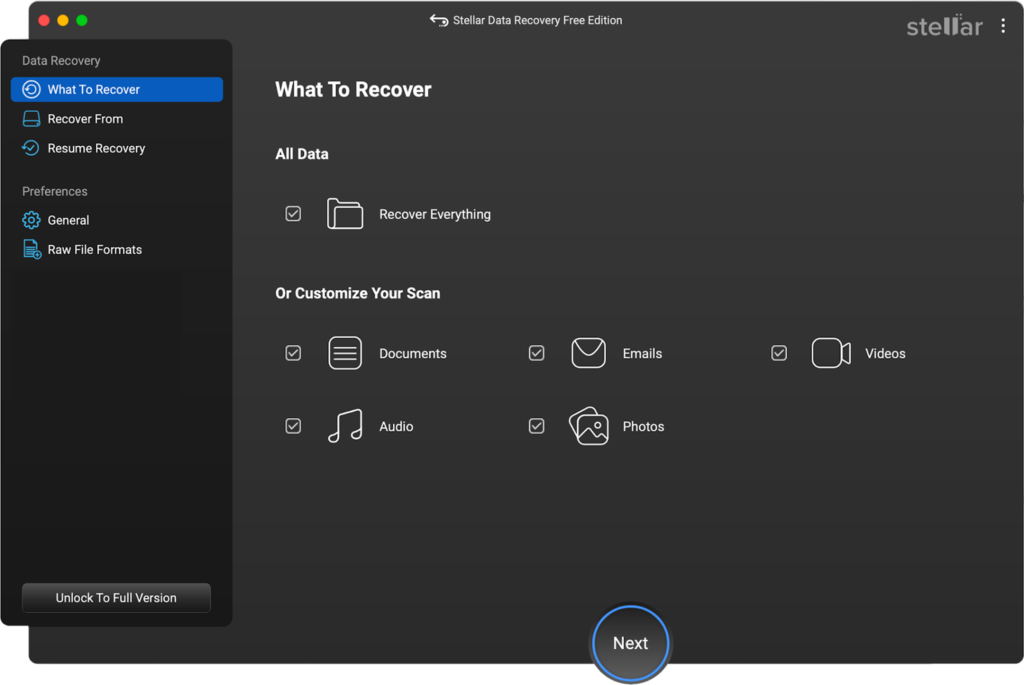
Step 1: Download and install the Stellar Data Recovery Free software on your Mac. Launch the software and from the homepage, select Recover Everything (or the type of file you want to restore). Click Next to continue.
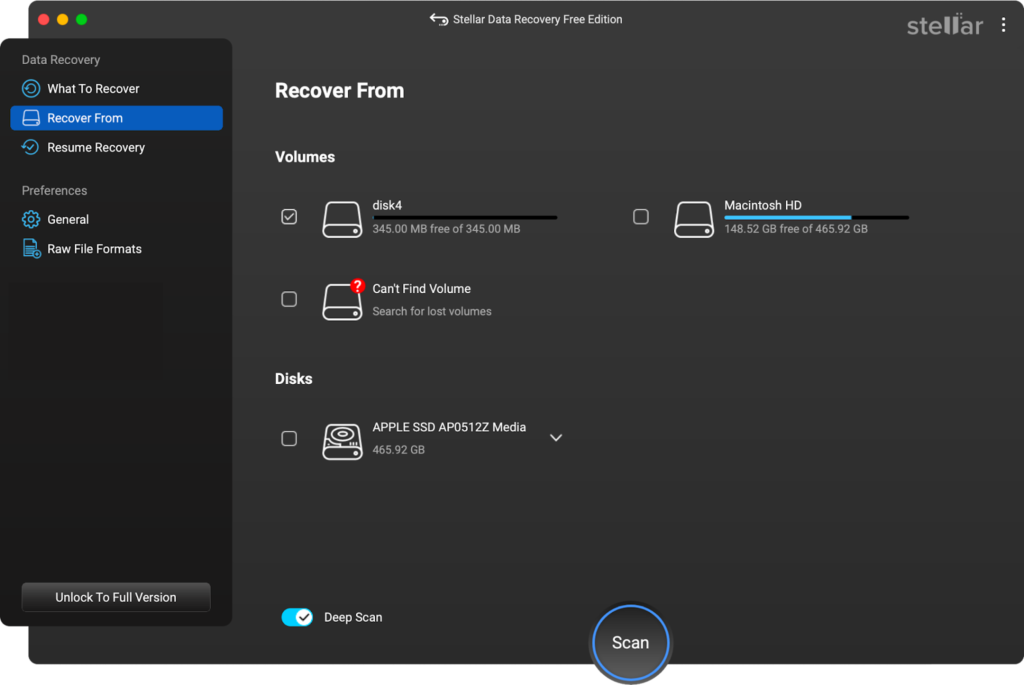
Step 2: Choose the storage drive where the deleted file was earlier stored and click Scan to initiate the scanning process.
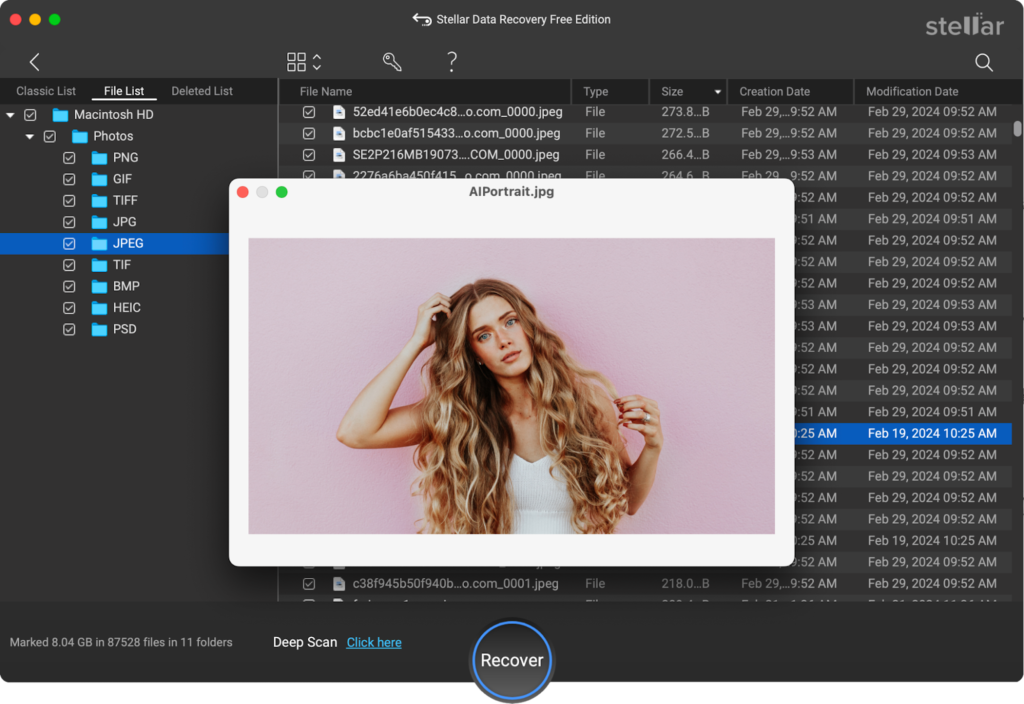
Step 3: Once the scan is complete, preview the recoverable files and click Recover to save them at the desired storage location on your Mac.
Pros:
- Easy-to-use interface suitable for beginners, allowing smooth navigation and quick file recovery without requiring any technical expertise.
- Supports data recovery from USB drives, SD Cards, and other internal or external storage media, making it versatile for different data loss situations.
- Offers a deep scan feature that thoroughly searches storage devices to recover data even from formatted or severely corrupted drives effectively.
Cons:
- The free version supports recovery of only up to 1 GB of files, which may not be sufficient for large data recovery requirements.
- Deep scan process can be time-consuming, especially when scanning large drives or dealing with heavily corrupted storage devices.
- Recovery success rate may vary depending on the severity of data loss, especially in cases involving hardware failure or overwritten data.
02: Disk Drill for Mac
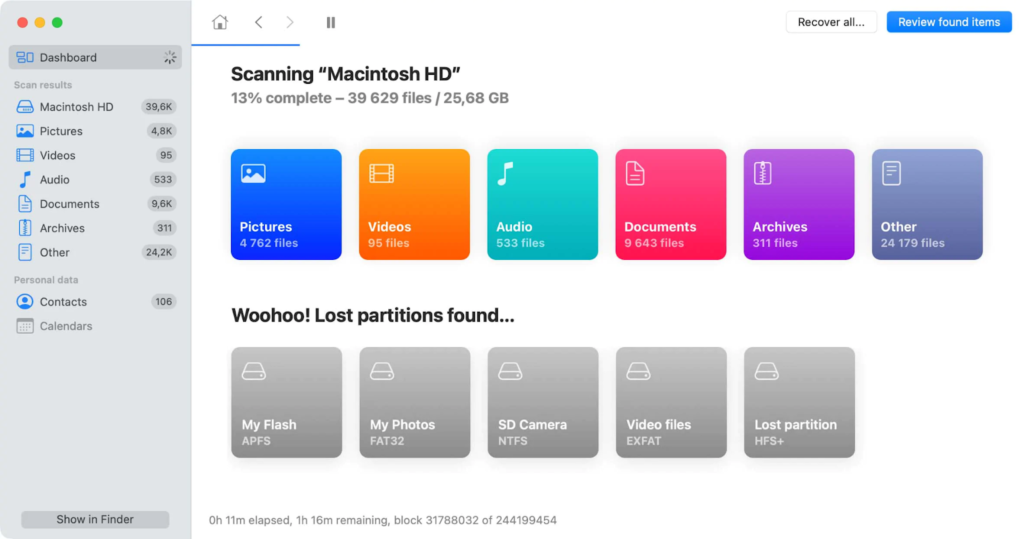
Disk Drill for Mac is a versatile free Mac data recovery software, known for its powerful scanning capabilities and clean, user-friendly interface. It supports recovery of deleted files from various storage devices such as internal drives, external storage devices, SD cards, and even mobile devices. You can use this software to restore deleted data of various types, including photos, videos, documents, and more. Disk Drill offers both quick and deep scan modes to handle simple deletions as well as complex recovery cases.
Pros:
- Supports recovery of deleted files from various file systems like APFS, HFS+, FAT, and NTFS, ensuring wide compatibility across devices.
- Allows you to preview the recoverable files before saving them on your device, so you can only restore the required data efficiently and accurately.
- Includes additional free tools like disk health monitoring, duplicate finder, and backup utilities, enhancing overall system maintenance and usability.
Cons:
- Free version lacks many advanced features, such as unlimited recovery and RAID support.
- The free version on macOS mainly allows preview of recoverable files; you need to upgrade to paid version for more advanced features.
- Deep scanning process can be time-consuming, especially when scanning large drives or heavily corrupted storage devices.
03: EaseUS Data Recovery Wizard for Mac
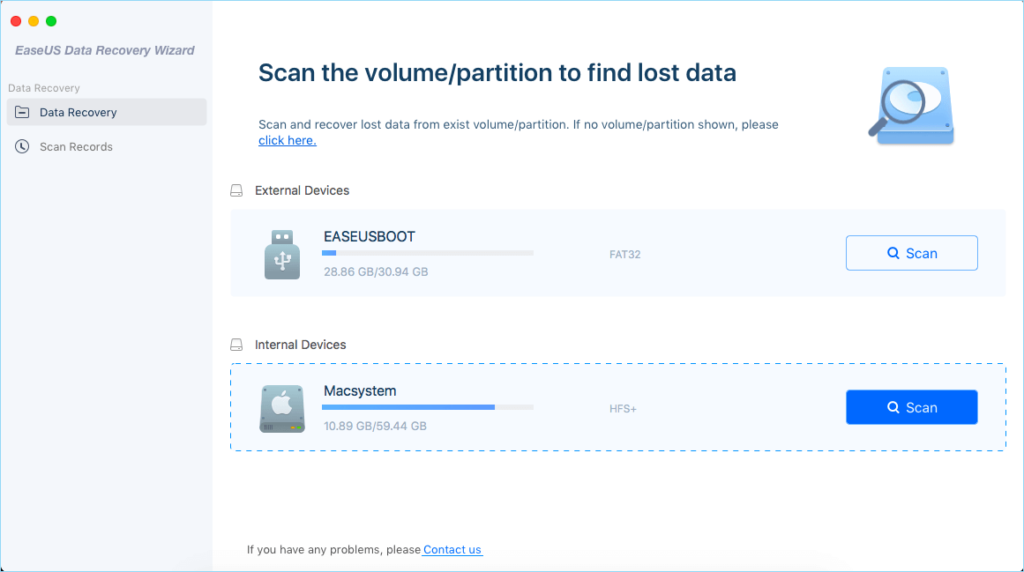
EaseUS Data Recovery Wizard for Mac is a widely trusted data recovery solution known for its simple recovery process and high recovery success rate. This free Mac data recovery software is known for its intuitive interface and compatibility with different storage devices. It supports data recovery from internal drives, external storage devices, USB drives, and SD cards. Additionally, the software is well-known for its features like file preview, filtering, and recovery from formatted or corrupted drives. Overall, it is a reliable and efficient choice for quick and hassle-free Mac data recovery.
Pros:
- Known for its extremely easy-to-use interface with step-by-step recovery process, making it ideal for beginners.
- Provides quick scan and deep scan modes to handle both recently deleted files and complex data loss scenarios efficiently.
- Compatible with modern macOS versions and Apple Silicon devices, ensuring smooth performance and stability on newer Mac systems.
Cons:
- Free version is limited in file recovery size, which may not be sufficient for users requiring recovery of large files or entire drives.
- Pricing of the paid version is relatively high compared to competitors, making it less appealing for budget-conscious users.
Quick Comparison: Top 3 Free Mac Data Recovery Software
All the aforementioned free Mac data recovery tools offer impressive features and reliable performance. Here’s a quick comparison to help you understand how they stack up against each other:
| Feature | Stellar Data Recovery Free | Disk Drill | EaseUS Data Recovery Wizard |
| Ease of Use | User-friendly but includes advanced options for better control during recovery | Clean and modern interface with simple navigation for all users | Extremely simple interface with guided steps, ideal for beginners |
| Scan Types | Offers quick scan for recent deletions and deep scan for complex recovery cases | Provides quick and deep scan with strong performance across file systems | Includes fast scan and deep scan for both basic and advanced recovery scenarios |
| Best For | Users needing reliable recovery with some advanced customisation options | Users wanting an all-in-one tool with additional disk utilities | Beginners looking for quick, hassle-free data recovery with minimal effort |
| Extra Features | Includes disk imaging, SMART monitoring, and support for Time Machine backups | Offers Recovery Vault, disk health monitoring, and backup features | Provides file preview, filtering options, and simple recovery workflow |
Conclusion
Losing data doesn’t necessarily mean it’s gone forever. You can use manual methods, such as recovery using built-in utilities or previously created backups, to get your files back. However, if these seem to be failing, try the aforementioned top 3 free Mac data recovery software tools to restore them. With modern Mac data recovery software, even free versions can recover critical files efficiently.
The key is choosing the right tool based on your needs—whether it’s ease of use, recovery capacity, or advanced features. So carefully compare the features of these tools and choose the one that best fits your needs.
